See Tracknotion benefits in action
Insights you should have
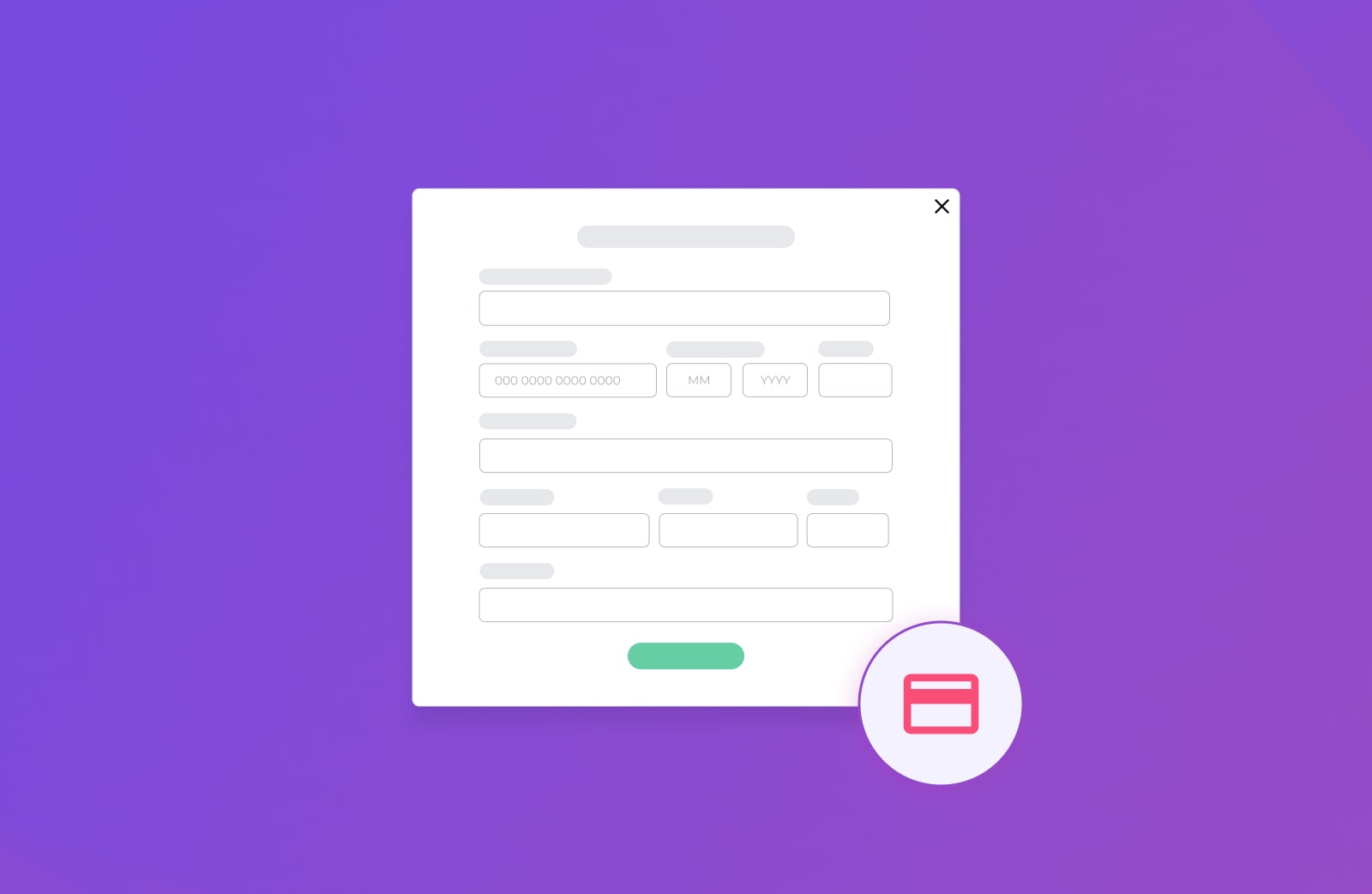
From time to time you might find it necessary to add or change your payment information for your TrackNotion subscription. We have simplified the process to make it easy and convenient for you.
New Trial Accounts: No Credit Card Required
As of our recent update, TrackNotion no longer requires a credit card for new trial sign-ups. You can explore the app's features first. You will only need to add a payment method when you are ready to upgrade to a paid plan.

Log into your TrackNotion account.
Click on your profile name or icon in the top-right corner of the screen to open the user menu.
Select ‘Account Settings’ from the dropdown menu.
You will be taken to your Account page. On this page's left-hand menu, click on ‘Billing’.
This will take you to the Billing page, which is split into two tabs: Service Plan and Payment.
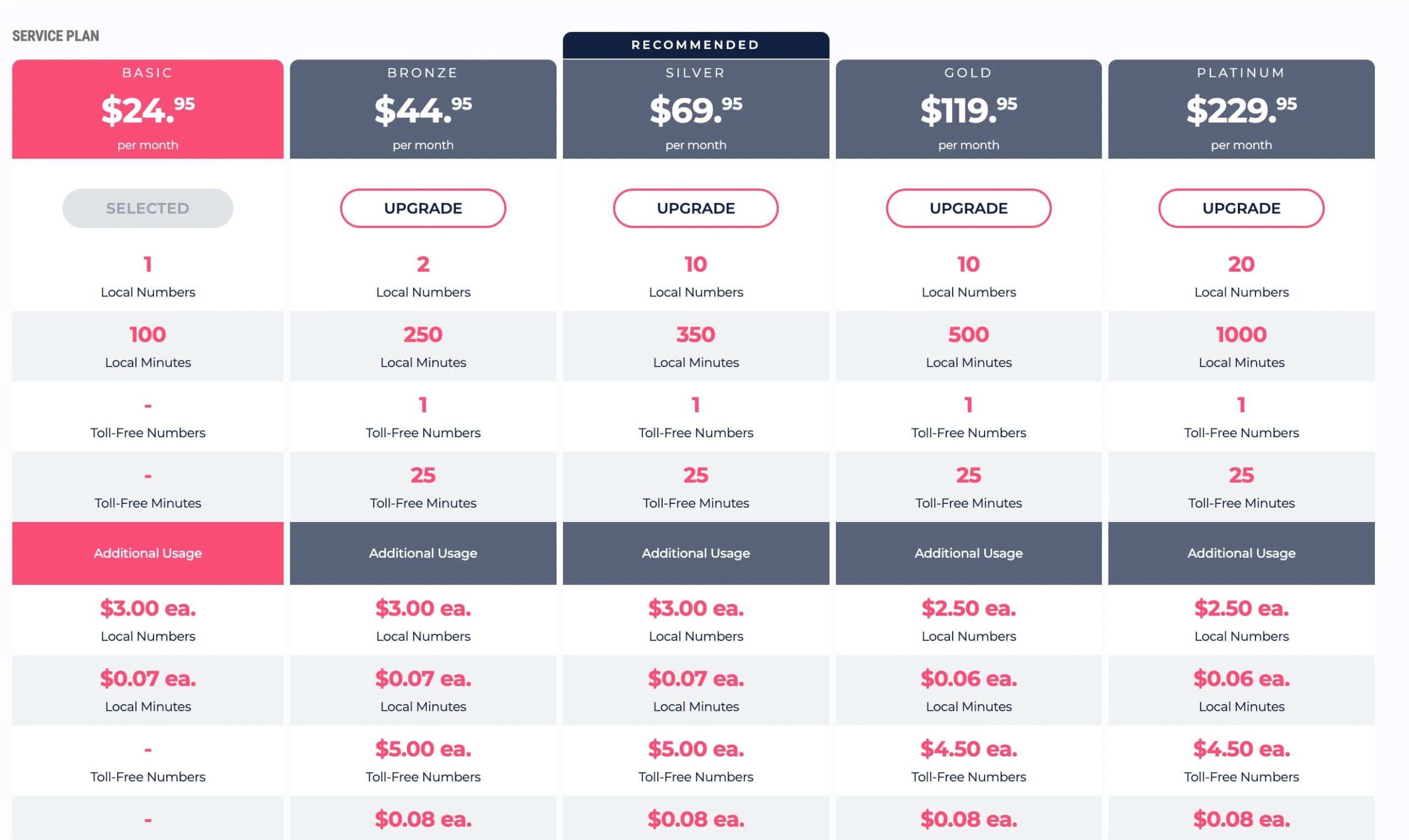
On the 'Service Plan' tab, you can view all available subscription plans and upgrade, downgrade, or change your current plan.
Click the 'Upgrade' or 'Downgrade' button on the plan you wish to switch to.
Follow the on-screen prompts to confirm the change.
If you are upgrading from a trial and have no payment method on file, you will be prompted to add one during this step.
Click on the 'Payment' tab (next to 'Service Plan') to manage your payment details.
If you do not have a card on file, this screen will have a form to add your payment details. Fill in the required fields and click 'Save'. Our secure payment processing is handled by Stripe.
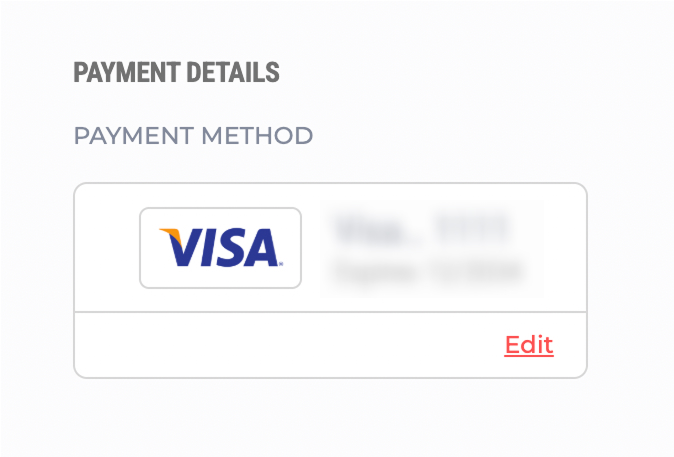
On the 'Payment' tab, you will see your current 'PAYMENT DETAILS'.
Click the ‘Edit’ link on your current payment method.
The 'Update Payment Method' pop-up window will appear.
Fill in all the fields with your updated information (Card Number, Expiry Date, etc.) and click the ‘Update’ button.
Depending on your notification settings, you may receive an email confirming any changes to your subscription or payment information. By navigating to your Account Settings, you can ensure your billing details are always up-to-date.