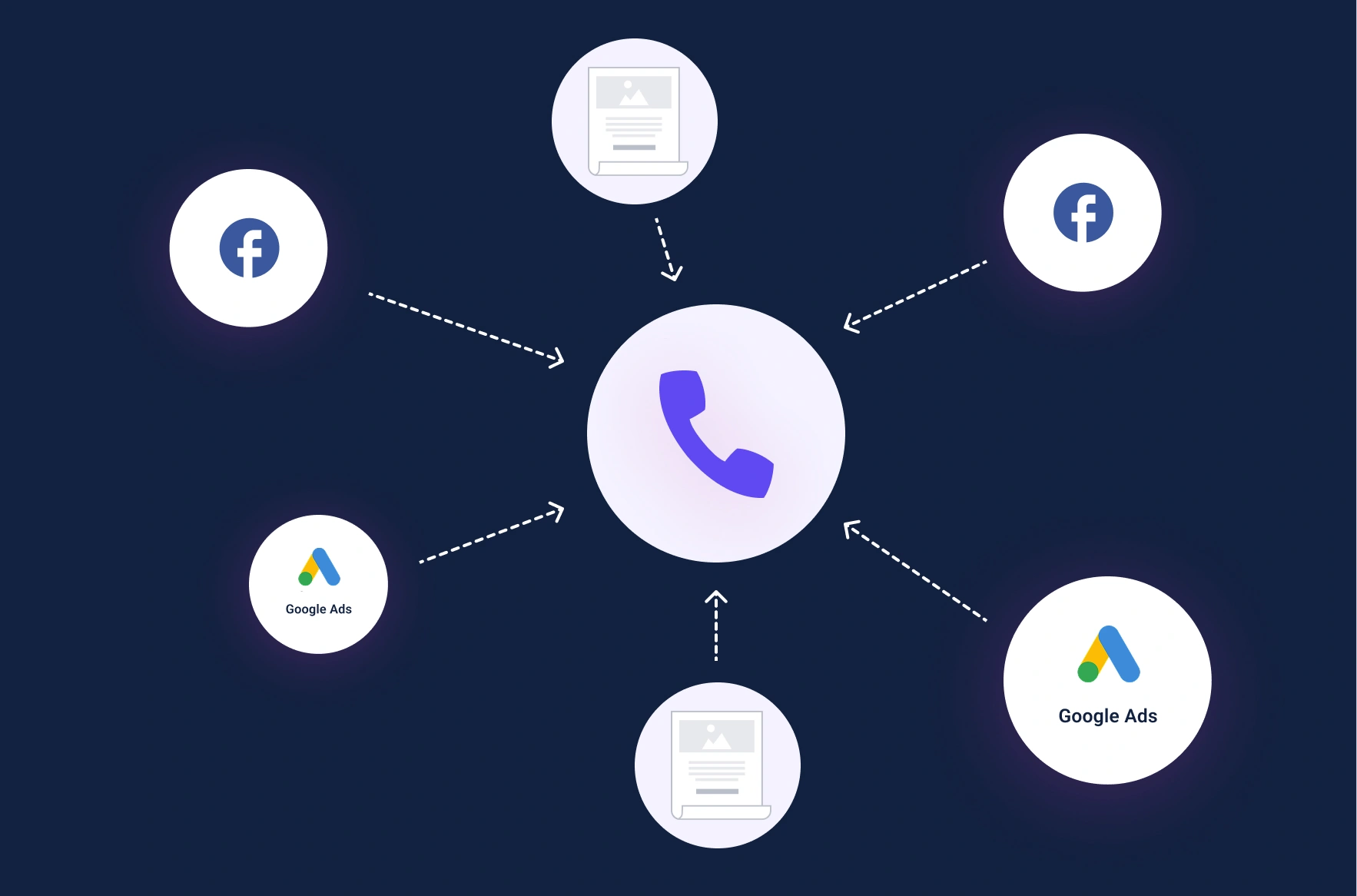
This article explains how to set up TrackNotion to attribute phone calls back to your specific digital ads (like Facebook posts, Google Keywords, or email banners). This process uses two key tools: Dynamic Placement Campaigns (DPC) and UTM parameters.
- Time Required: 30 min. to 1 hour
- Technical Level: Moderate (Requires website access)
- Prerequisits: Basic understanding of your website's header code.
To measure the true Return on Advertising Spend (ROAS) of your digital campaigns, you need these two components working together. They ensure every incoming call is tied back to the exact marketing effort that generated it, eliminating guesswork from your budget decisions.
Here’s what you’ll find in this article:
- Why UTM Parameters and DNI are Essential
- Step 1: Creating Your Tracking Label (The UTM URL)
- Step 2: Set Up Your Dynamic Placement Campaign (DPC)
- Step 3: Tracking Calls from Paid Search Ads (Google/Bing)
Why UTM Parameters and DNI are Essential
Why Use UTM Parameters
Think of a UTM Parameter (Urchin Tracking Module) as a small, coded label or tag you attach to the end of your digital ad link.
Value Proposition: You use these UTM labels to tell TrackNotion exactly why a caller is on your site.
- Without UTMs: TrackNotion can only report that a call happened.
- With UTMs: We report which specific campaign, ad, or keyword generated the call. This is the difference between knowing "the call came from Facebook" and knowing "the call came from the Facebook video ad creative labeled 'Summer Promo V2'."
When a user clicks a tagged link in an ad, the TrackNotion system captures that label and assigns it to the user's current browsing session.
What is Dynamic Number Insertion (DNI)?
Dynamic Number Insertion (DNI) is the technology at the heart of your Dynamic Placement Campaign (DPC).
- The Problem: If you run 20 different digital ads, you can't put 20 different tracking numbers on your website; it would look messy.
- The DNI Solution: DNI dynamically replaces your standard website number with a unique tracking number only for that specific visitor. This number is pulled from a Number Pool and temporarily assigned to the visitor's UTM session data.
When the visitor calls the number they see, the system instantly knows: "The person calling this unique number is the same one who clicked the Facebook ad." This provides pinpoint attribution.
Step 1: Creating Your Tracking Label (The UTM URL)
For any external digital link you create (in an email, social post, or ad outside of Google/Bing), you must manually build the UTM parameters.
Understanding the Five Standard Labels
These tags are added to your URL. We recommend using them consistently:
- utm_source: This tells TrackNotion where the traffic originated. For example, facebook, google, or linkedin.
- utm_medium: This is the channel type your traffic arrived from. For example, paid_social, email, or cpc.
- utm_campaign: This is the name of the overall promotion. For example, spring_sale, summer_promo, or product_launch
- utm_term (optional): Identifies the paid keyword in search ads. For example, 'running+shoes', and 'best+dentist'
- utm_content (optional): Differentiates creatives or links within the same ad set. For example, logolink, or video_ad_30sec
Building the URL
- Start with your Landing Page URL:
https://www.yourwebsite.com/ - Add the parameters: Start with a question mark (?) to begin the parameters, and separate each parameter with an ampersand (&):
Example URL:
https://www.yourwebsite.com/demo?utm_source=facebook&utm_medium=paid_social&utm_campaign=summer_promo&utm_content=video_ad_30sec
Best Practice Tip: Naming Conventions
- Consistency is Key: Use a consistent, all-lowercase naming convention.
- Avoid Spaces: Always use underscores (_) or dashes (-) instead of spaces (e.g., summer_promo). This prevents data fragmentation in your reports.
Step 2: Set Up Your Dynamic Placement Campaign (DPC)
The DPC is the technical setting inside your TrackNotion dashboard that powers DNI.
3.1: Verify Script Installation
The entire DNI system depends on the TrackNotion script being installed on your website.
- Action: Verify that the necessary TrackNotion script is installed in your website's <head> header section.
- Access: You will need admin or developer access to your website to check or install this script.
[Placeholder: Link to Script Generation and Installation Guide]
3.2: Create the Number Pool
To ensure every simultaneous visitor sees a unique number, you must allocate a pool of tracking numbers for your DPC.
- Pool Requirement: The required size of your number pool is determined by your website's highest concurrent visitor traffic.
- Rule of Thumb: You should have at least 3-5 times more numbers than the maximum number of simultaneous visitors you expect from your ads. Consult your TrackNotion account manager if you are unsure.
Step 3: Tracking Calls from Paid Search Ads (Google/Bing)
For tracking traffic from paid search platforms (like Google Ads and Bing Ads), you do not manually build UTM links for every single ad. Instead, you use the platform's native tracking tools.
Using ValueTrack Parameters
These platforms use features often called ValueTrack parameters (e.g., {keyword}, {adgroupid}, {campaignid}). These native parameters automatically pass rich attribution data to your URL whenever an ad is clicked.
- Crucial Setup: You must configure the tracking templates within your Google Ads or Bing Ads accounts to pass these specific ValueTrack parameters into the URL.
- TrackNotion Requirement: If these tracking parameters are not set up correctly in your ad platform, TrackNotion will not receive the necessary data to perform attribution.
The result is that every inbound phone call is treated as a conversion, complete with all the digital ad attribution data you need to calculate your true Return on Advertising Spend (ROAS).
Next Steps & Testing
Once you have completed all three steps:
Test Your Setup: Click one of your new UTM-tagged URLs, navigate to the landing page, and observe the phone number. It should be different from your standard number. Place a test call.
Verify Data: You should immediately see the call and the correct UTM attribution details appear in your TrackNotion dashboard.
Review Reports: Begin monitoring your TrackNotion Reports to see the granular data collected.