TrackNotion makes it easy to work with your team while keeping your data secure. The system allows you to control exactly what each person can see and do, so employees or partners only have access to the features they need for their specific job.
In this article:
- Adding New Team Members
- Managing Existing Users and Changing Roles
1. Adding New Team Members
- Click on the profile icon on the top-right of the screen and select ‘Account Settings’ from the dropdown. In the left-hand navigation menu, select ‘Users’.

- Add User: Click the green ‘+ Add new user’ button in the top right.
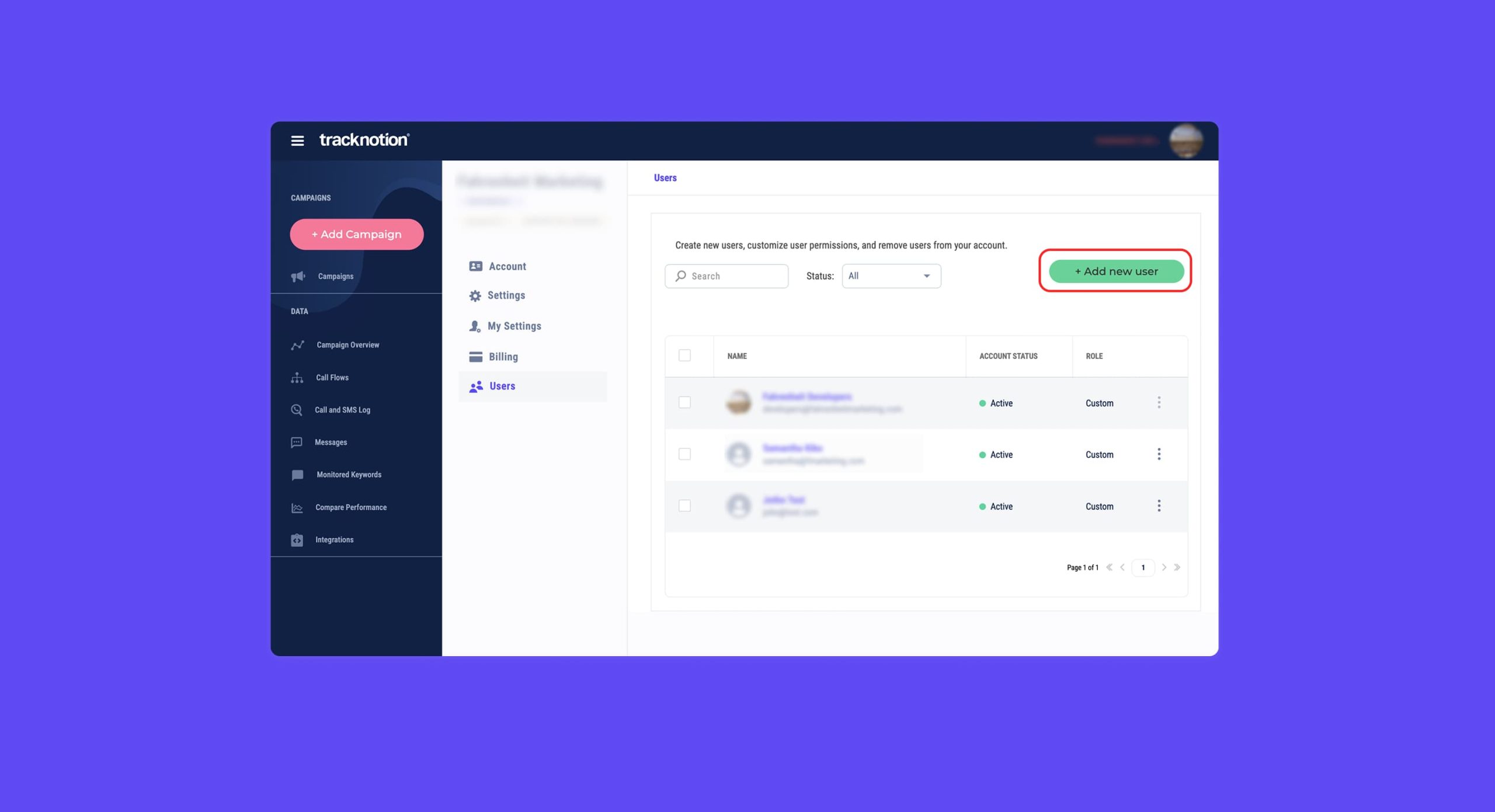
- In the dialog box, enter the email address(es) for the team member(s) you want to invite. You can add multiple emails at once by selecting ‘+Add another email’. Once ready, click ‘NEXT’.
- Select the Access Type (Permission Set) for the new user. You can choose one of the pre-configured roles (like Read Only Access, Office Manager, or Marketing User) or select Custom to define a unique set of permissions.
- Click NEXT. The user will receive an email link to sign in and join your workspace. They will automatically have the permissions you assigned. Users will need to accept your invitation from their email inbox.
2. Managing Existing Users and Changing Roles
If a team member's job changes, you can instantly update their access.
- Go to the Users tab in the Account Settings window to see your list of team members.
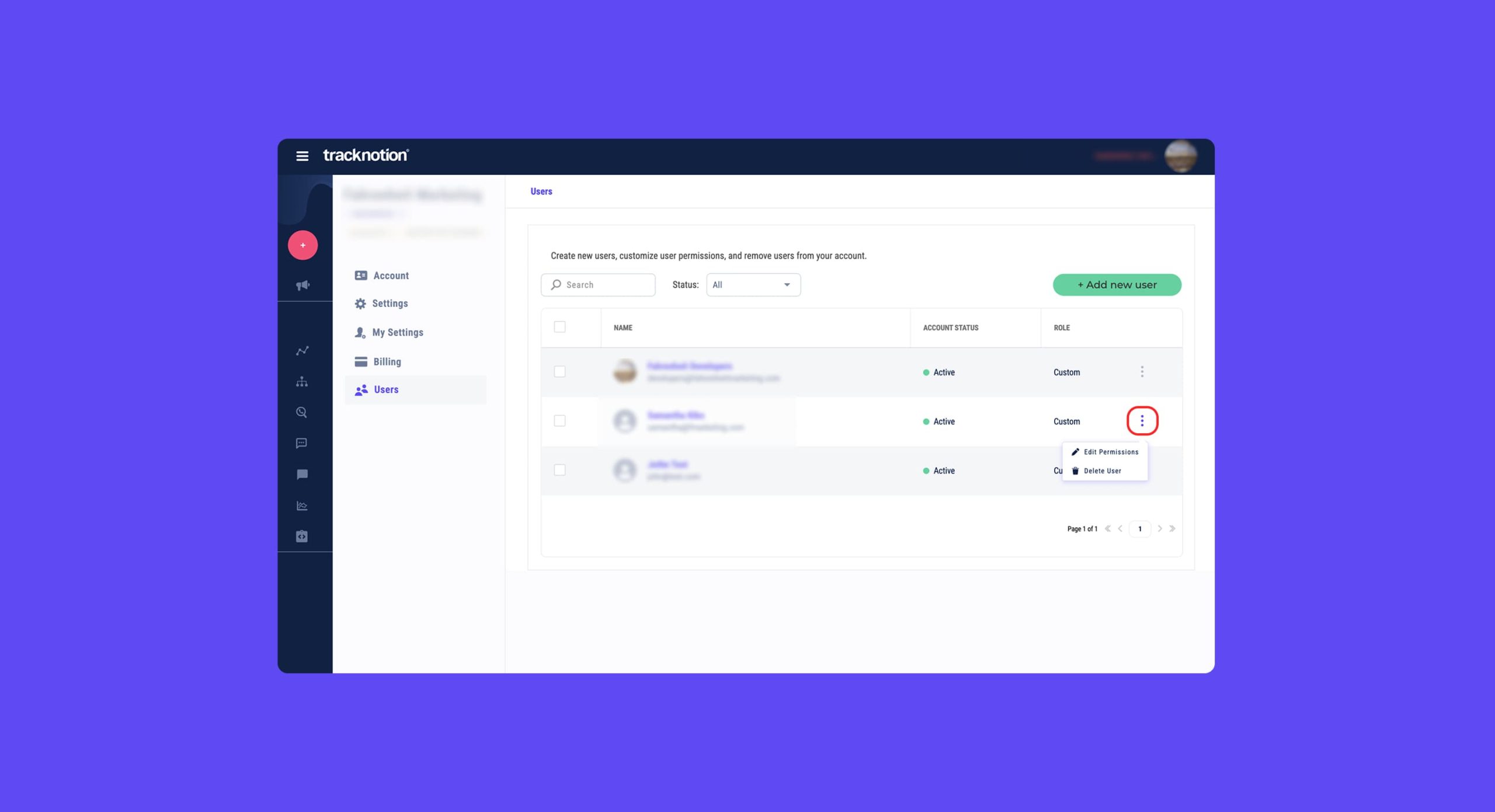
- Find the user you want to update and click the "more options" (three dots) icon on the right side of their row.
- Change Role: Select the option to edit permissions. You can assign a completely new role or check/uncheck specific boxes to customize their access. You can also select ‘Delete User’ to remove their access from the account.
- Once complete, select ‘Save’ to save your changes and update the user’s permissions.